Add links, menus and colors
Open Brand Navigation under Admin → Appearance → Themes & components. Work on your preview theme first.
Settings screenshots
Section titled “Settings screenshots”Select either preview to open the full-size screenshot.

Brand identity
Section titled “Brand identity”Set your brand name, destination and optional logo in the component settings. You can provide separate light- and dark-scheme logos. Check both color schemes and give the brand a meaningful name, including when you display only a logo.
Turn show_brand off if you want navigation without a separate brand area.
Navigation items
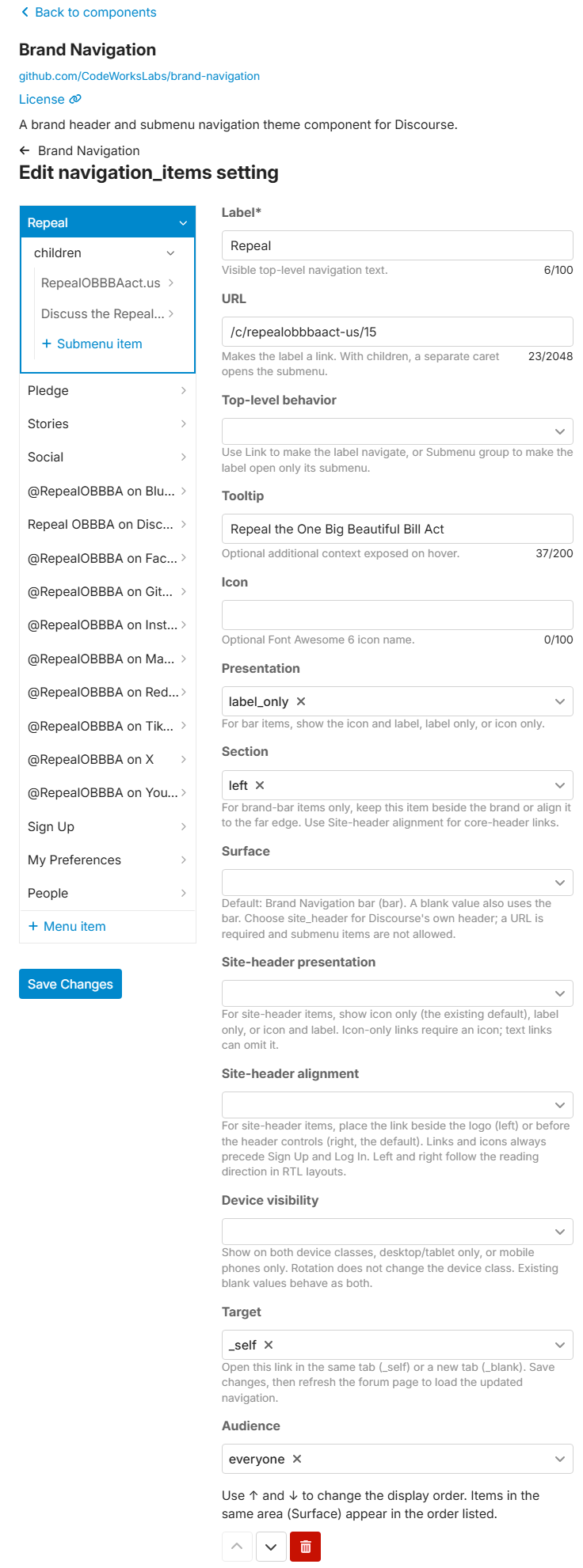
Section titled “Navigation items”Open navigation_items. The editor’s + Menu item button adds a top-level entry; + Submenu item adds a link beneath one. The supplied configuration already contains examples, so edit an existing entry instead of adding a duplicate.
Select an item and use ↑ Move up or ↓ Move down to change its order. Items in the same area (Surface) appear in the order listed; submenu items have their own order. Save, then refresh the forum.
Add your first link
Section titled “Add your first link”- Select the existing Community entry, or choose + Menu item if starting empty.
- Set Label to
Communityand URL to/latest. - Choose Surface
bar, Top-level behaviorlink, and Target_self. - Select Save Changes. The editor stays open so you can continue working.
- Refresh the forum preview and select Community. It should open the latest topics in the same tab.
Use a path such as /latest for a page on your forum, or a full https:// address for another website. Do not use # as a placeholder destination.
Create a submenu
Section titled “Create a submenu”- Select the Community entry and choose + Submenu item.
- Set the child’s Label to
FAQ, URL to/faq, and Target to_self. - Select Save Changes, then refresh the preview.
Community still opens /latest; its separate arrow opens the submenu containing FAQ. For a heading that only opens a menu, choose Top-level behavior group instead. Group mode keeps the saved parent URL but does not use it.
Only one submenu level is supported. Every child needs its own label and URL.
Palette and custom colors
Section titled “Palette and custom colors”Return to the component’s main settings page and find Appearance. Start with the theme’s colors: leave Custom off so Brand Navigation follows its light and dark palettes.
Enter a six-digit hex color directly in its setting field (for example, #002147) and save it, or use the optional picker in Appearance: turn on Custom, choose a color, then select Save colors.
All eleven color settings have pickers: navigation-bar background and text/icons; menu highlight background; dropdown background, text/icons and hover/focus text/icons; header icons, link text and their hover/focus colors; and header hover/focus background.
Both methods change the same saved colors. A blank field or an unchecked Custom row uses the default. Inherit all immediately clears and saves all eleven color overrides; it does not reset sizes. Colors accept a leading # or no # and are included when you export a settings backup.
Discourse header links and icons
Section titled “Discourse header links and icons”For a site_header item, choose its Site-header presentation:
label_only: text, with no icon required.icon_and_label: an icon and text. The text remains available if the optional icon is unavailable.icon_only: a compact icon link. This requires an icon; if that icon is unavailable, the link is omitted until it becomes available.
Keep a clear Label even for icon-only links: it is the link’s accessible name. Enter a Font Awesome 6 icon name and include it in custom_font_awesome_icons so Discourse loads it. Header entries need a URL and cannot contain children or use group behavior.
Header colors
Section titled “Header colors”In Appearance, use Discourse header — icons and icons on hover/focus for icon colors. Use the separate link text and link text on hover/focus pickers for text. Link and icon background on hover/focus controls the highlight behind both. You can also enter colors directly in the corresponding settings above.
Leave each value inherited to follow your theme. Custom colors stay fixed across light/dark palettes, so check readability in both.
Header sizes
Section titled “Header sizes”Header icon size desktop/mobile and Header text size desktop/mobile set independent pixel sizes. Enter 1–48, or use Reset / 0 for the theme default. A value of 1 really means 1px and can make an icon look missing. Mobile means Discourse’s mobile view, not just a narrow desktop window.
Add a text link to the Discourse header
Section titled “Add a text link to the Discourse header”Create a separate top-level Menu item, with no submenu children:
| Field | Example value |
|---|---|
| Label | Versions & Status |
| URL | Your actual status-page address; /about is a safe example for trying this on your own forum. |
| Top-level behavior | link |
| Surface | site_header |
| Site-header presentation | label_only |
| Site-header alignment | right |
| Target | _self |
Save and refresh the preview. The text link appears before the header controls, ahead of Sign Up and Log In. Choose alignment left to put it beside the forum logo instead. Left and right follow the reading direction on RTL sites.
The option menus display identifiers such as site_header and label_only; use the values shown above. Section moves entries within the brand bar. It does not position links in the Discourse header; use Site-header alignment for those.
Open a link in a new tab
Section titled “Open a link in a new tab”Choose Target _blank, select Save Changes, then refresh the forum page before testing. Use _self to keep navigation in the same tab. A forum tab that was already open can retain its previous settings until refreshed.
Choose who sees a link
Section titled “Choose who sees a link”Audience can be everyone, anonymous (signed out), or authenticated (signed in). Device visibility can be both, desktop, or mobile. Check parent and child items separately.
Audience controls visibility, not permission to access the destination. Protect restricted pages with Discourse permissions. Device visibility follows Discourse’s device classification; narrowing a desktop browser window does not make it a phone.
Mobile presentation
Section titled “Mobile presentation”Use mobile_mode menu for a compact menu button, bar for the full wrapping bar, or hidden to hide Brand Navigation on mobile, including its header links.
For a small screen, start with menu, short labels and a few essential header links. Mark less important destinations desktop-only and put the full set in a submenu that mobile visitors can reach. Long header labels may be truncated and logos compact; adding more links does not create more header space.
Before sharing the configuration, test every link while signed in and signed out, on desktop and a phone, and in light and dark modes. Tab through the menus and use Escape to close them. Fix a problem if the result is not what you expect, or open the complete administrator reference for every setting and its Theme translations section for changing interface wording.